
Character
Generate or edit with FLUX.2 Turbo. Test a scene, vary its visual treatment and keep the ideas moving.
Original outputs from this model. Open an image to look closer, or use its prompt as your starting point.
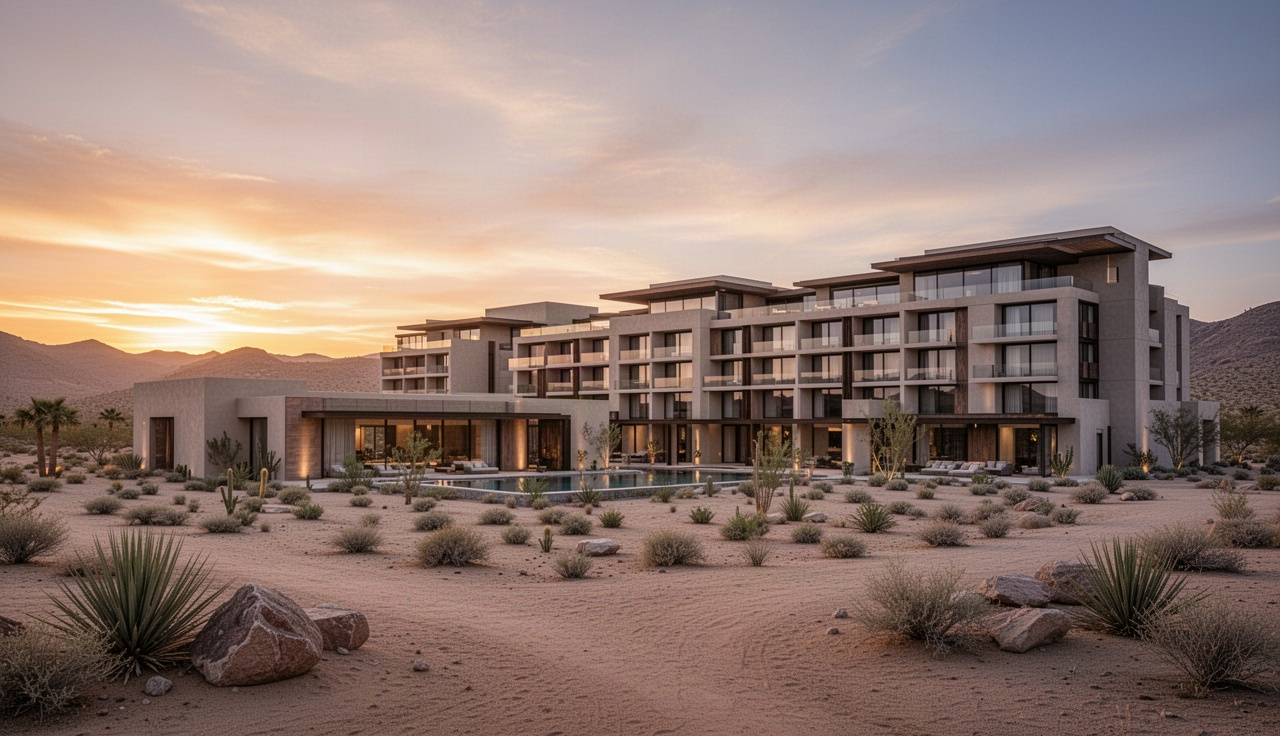
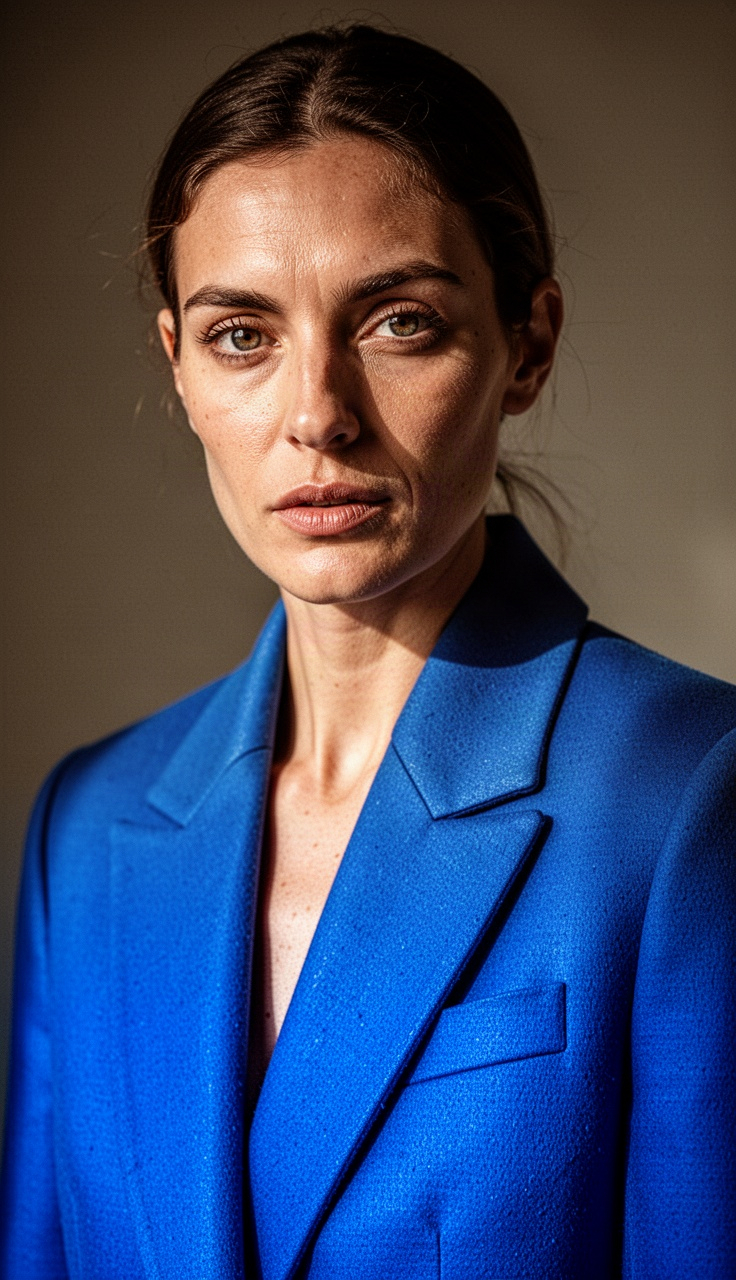
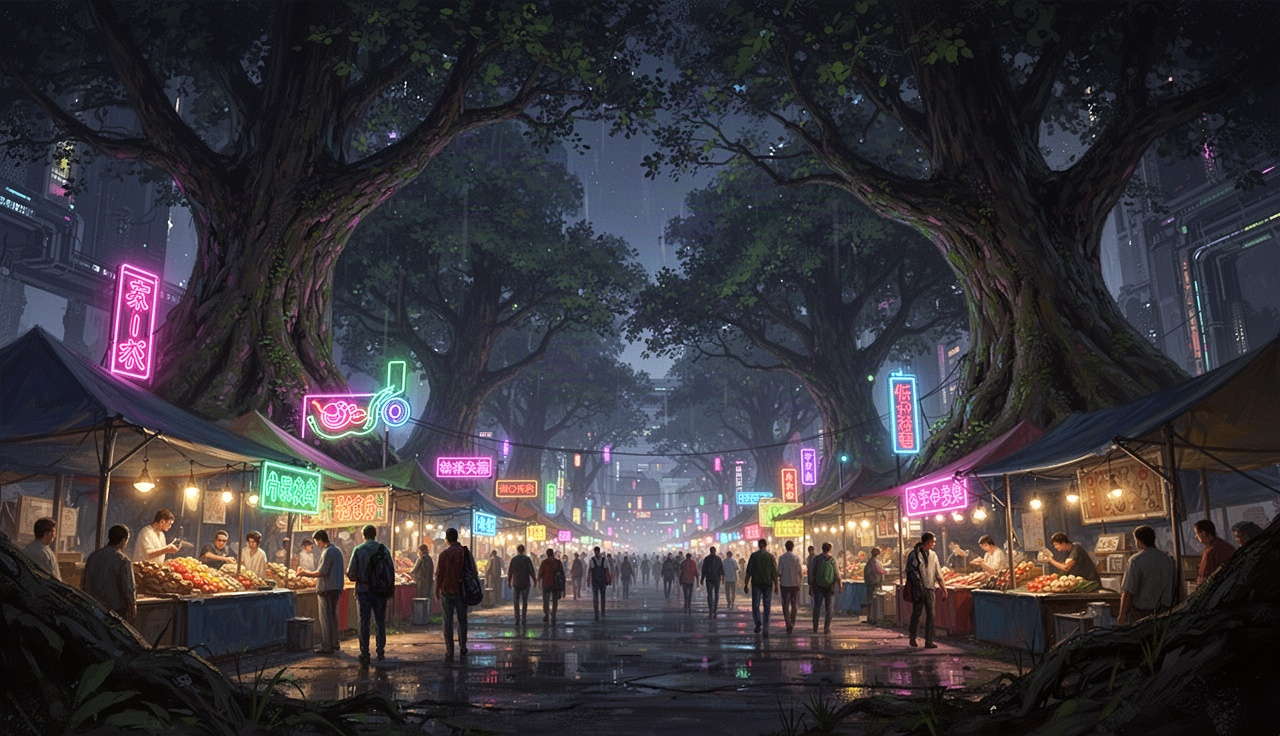
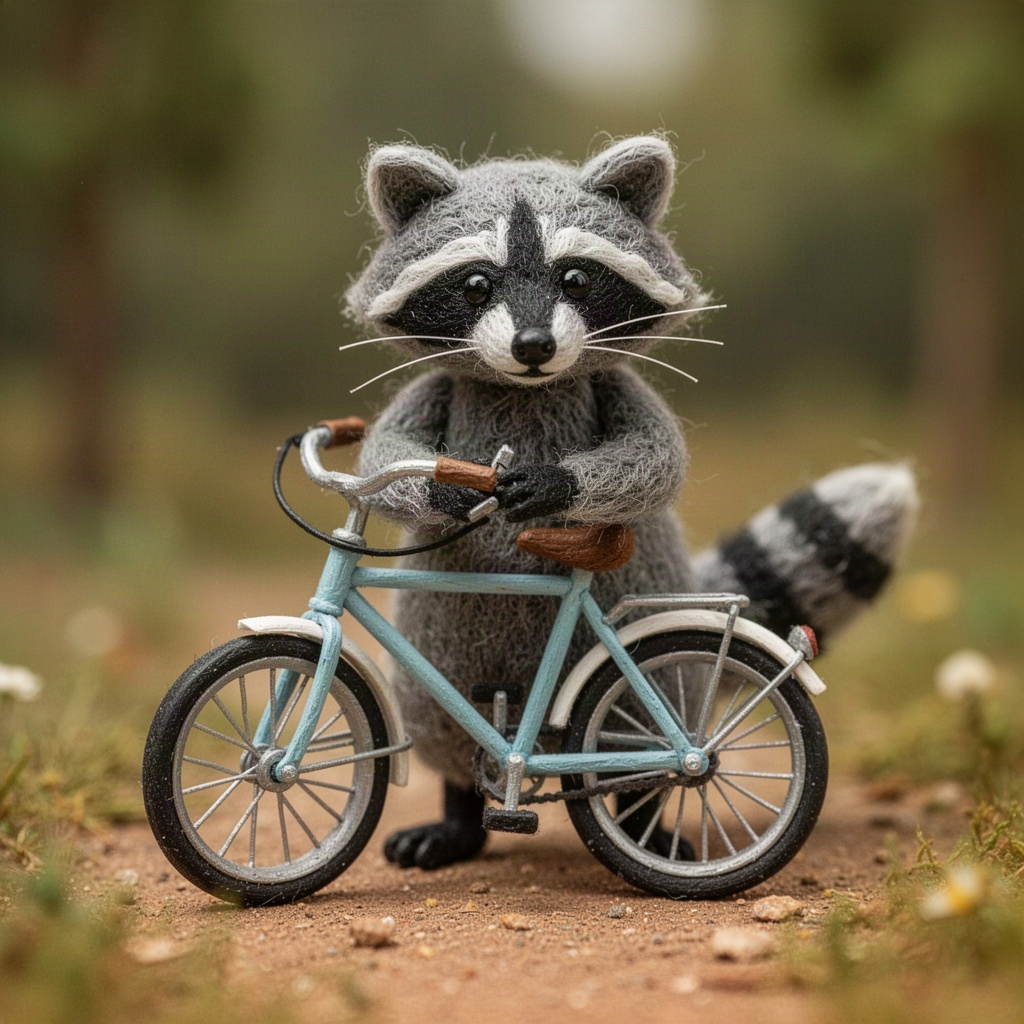
FLUX.2 Turbo is the speed-oriented FLUX.2 option connected here for text and image input. A useful workflow is to keep one subject constant while testing a few distinct treatments: a studio photograph, a graphic illustration and a miniature scene.
Change one creative decision at a time so you can tell what helped. For example, keep the camera angle and switch from soft daylight to a strong side light. Avoid judging speed as a guarantee; queue conditions still affect completion time.
A fuller brief for the moment when you know what you want. Copy it, or send it to the creator and make it your own.
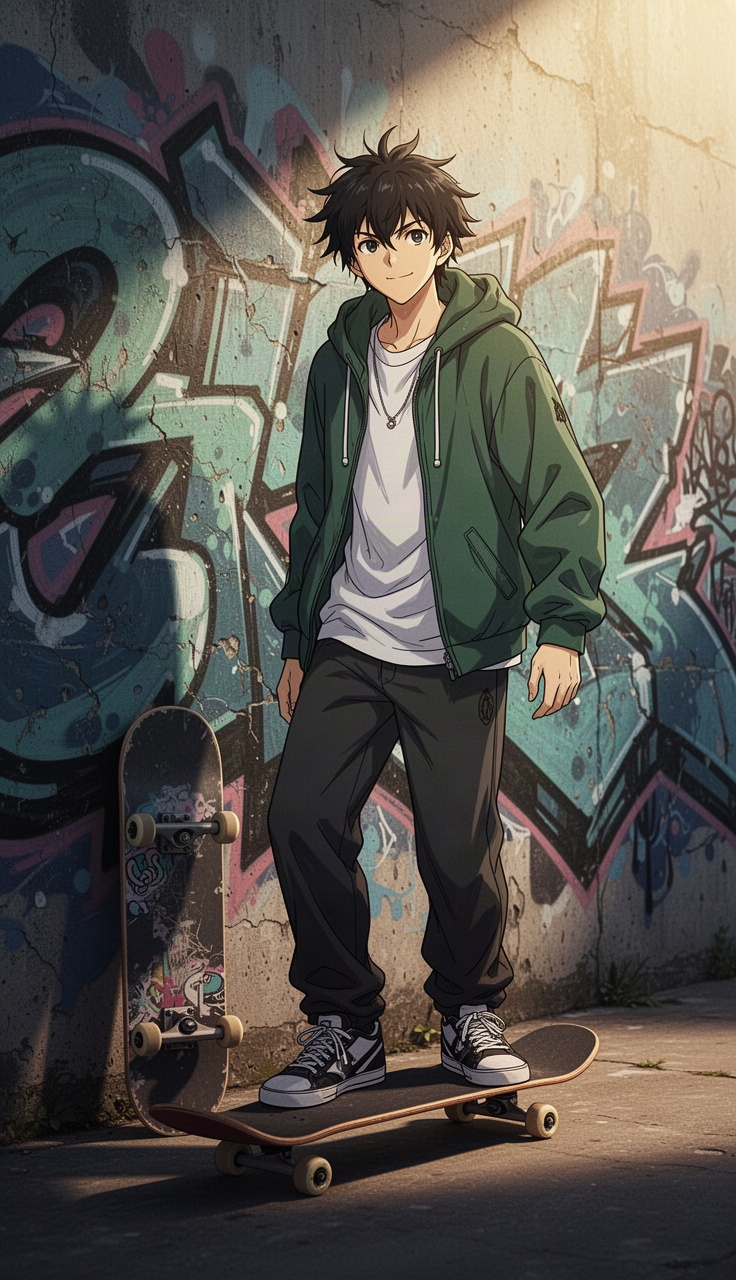
An anime skateboarder beside a mural. Original anime character illustration, confident clean linework, expressive face, carefully layered clothing, restrained colors, clear silhouette, cinematic rim light. One character, no text.
Compose the figure with breathing room above the head and around the hands. Use one clear pose, a readable outline and a quieter background. Keep the face expressive without exaggerating the anatomy.
Let the clothing show a small amount of fabric texture. Use soft environmental light and a restrained highlight along the silhouette. The result should feel like a thoughtfully composed character study, not a collage of unrelated styles.
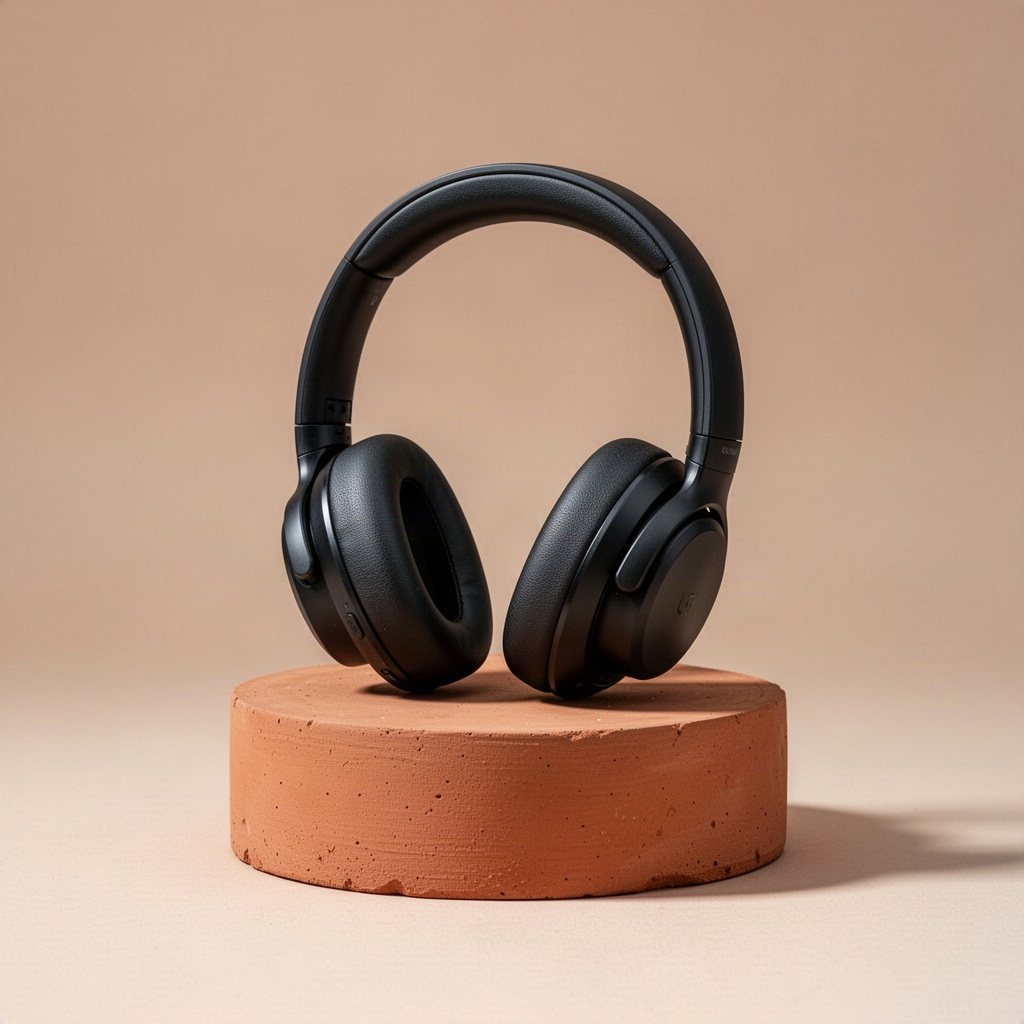
A black headphone set on a terracotta plinth. Premium product still life, precise material detail, soft studio key light, subtle contact shadow, generous negative space, realistic photography, no lettering or logos.
Place the object slightly below the center with ample empty space above it. Keep the material and geometry consistent. Add a soft contact shadow to ground the object, with no distracting props.
Use one broad key light and a subtle fill. Preserve believable reflections and fine surface texture. The composition should read clearly at thumbnail size while retaining detail when viewed larger.
| Starting point | Text prompt or one reference image |
|---|---|
| Framing | 16:9 / 9:16 / 1:1 |
| Resolution | Standard output |
| Output | One image per generation |
These are the options connected to this creator. The model may offer additional features in other products. The credit quote is shown before you confirm generation.
Choose the frame for your FLUX.2 Turbo image before filling in the details. Name the main subject and its position. A product centered on a table needs a different brief from a character standing near the edge of a landscape.
Describe the medium, palette and direction of light. Keep those choices compatible: a soft watercolor study and a glossy studio photograph are different assignments.
Check anatomy, object edges, lettering and the crop at full size. Change the instruction that caused the problem instead of appending a long list of unrelated adjectives.
FLUX.2 Turbo is the speed-oriented FLUX.2 option connected here for text and image input. A useful workflow is to keep one subject constant while testing a few distinct treatments: a studio photograph, a graphic illustration and a miniature scene.
Yes. Upload one JPG, PNG or WebP image under 10 MB. Describe the revision and the features you want to preserve. This creator does not accept multiple reference images.
The available frames are 16:9 / 9:16 / 1:1. Use a vertical composition for a tall character or mobile visual, a wide frame for a scene, and a square frame for a compact composition. Set the frame before refining the prompt.
Change one creative decision at a time so you can tell what helped. For example, keep the camera angle and switch from soft daylight to a strong side light. Avoid judging speed as a guarantee; queue conditions still affect completion time.
Other Black Forest Labs versions are listed below. Compare the input options and settings as well as the name; different versions can have different limits. Change one creative decision at a time so you can tell what helped. For example, keep the camera angle and switch from soft daylight to a strong side light. Avoid judging speed as a guarantee; queue conditions still affect completion time.
The finished image appears in Your creations below the generator, where you can preview and download it. Save a copy you want to keep. If a result is stored only on this device, the result panel labels it accordingly.
 Nano Banana 2Google↗
 GPT Image 2OpenAI↗
 Seedream 5 ProByteDance↗
 Qwen Image 3Alibaba↗
 Ideogram 4.5Ideogram↗
 Grok Imagine Image 2xAI↗
Start with a clear idea. Shape the details as you go.
